
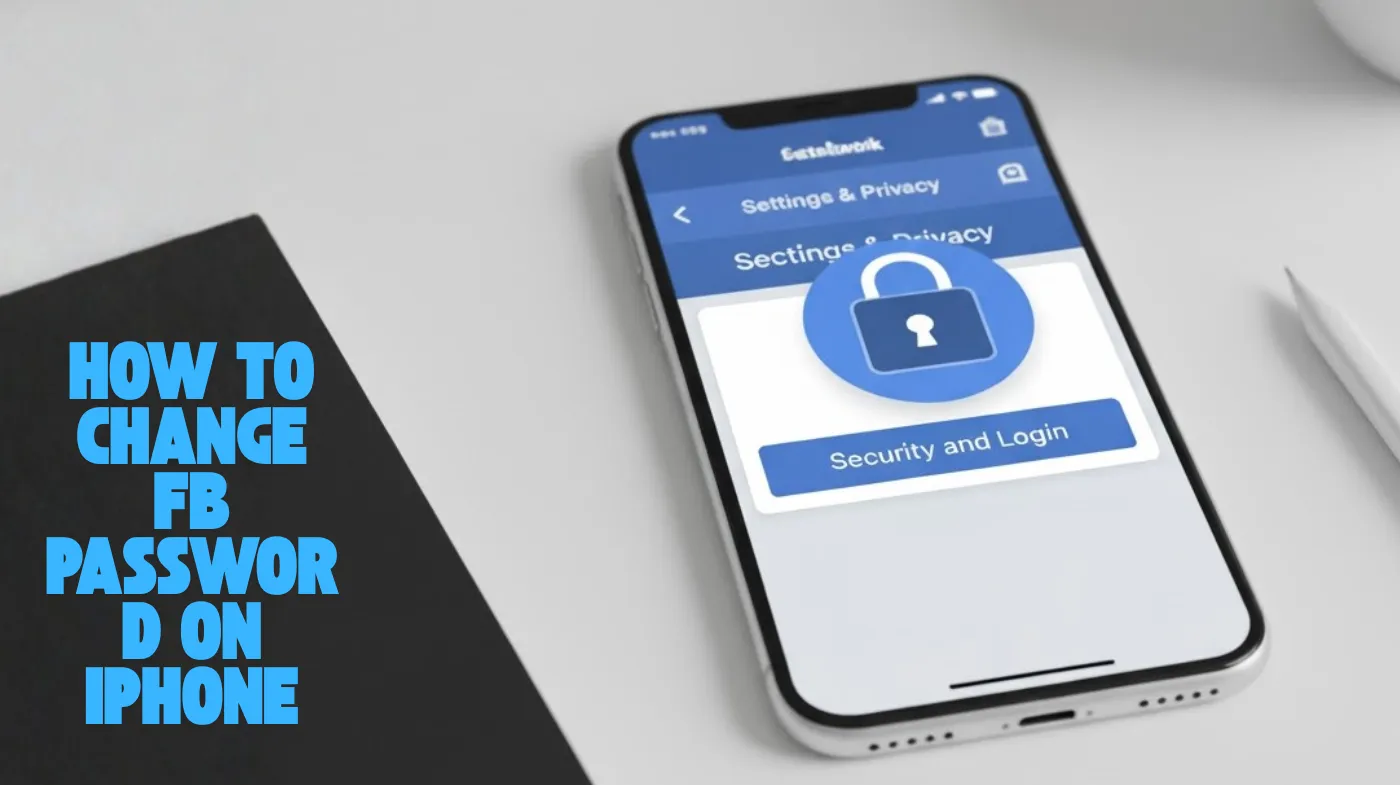
Your Facebook account deserves better protection. Changing your password regularly prevents unauthorized access and keeps personal data secure.
On an iPhone, the process takes just minutes: open the Facebook app, navigate through Settings & Privacy to Accounts Center, select Password and Security, then update your credentials.
This guide reveals proven security strategies beyond basic password changes, including breach monitoring tools and recovery methods most users overlook.
Discover how to create uncrackable passwords, detect compromised accounts early, and implement multi-layered protection that stops hackers in their tracks.
Whether you’ve forgotten your current password or simply want stronger security, these actionable steps ensure your social media presence stays protected. Ready to lock down your account?
Steps to Change Your Facebook Password on iPhone
Updating your Facebook password directly from your iPhone is straightforward when you follow the right steps. The process happens entirely within the Facebook app.
Step 1: Open the Facebook App and Access Menu
Launch the Facebook application on your iPhone. Tap the three horizontal lines (hamburger menu) located in the bottom-right corner of your screen. This opens the main menu, where all settings and account options are available.
Step 2: Navigate to Settings & Privacy
Scroll down through the menu options until you find Settings & Privacy. Tap on this option to expand it, then select Settings from the dropdown menu. This takes you to the main settings area where account configurations are managed.
Step 3: Access Accounts Center
At the top of the Settings page, look for the option labeled See more in the Accounts Center. Tap this panel to enter the Accounts Center, which manages all your Meta accounts, including Facebook and Instagram. This centralized hub controls security settings across platforms.
Step 4: Select Password and Security
Inside the Accounts Center, scroll down to the Account Settings section. Tap on Password and Security to access login and recovery options. This area contains all password-related controls for your linked accounts.
Step 5: Choose Change Password
Under the Login & Recovery section, tap Change Password. If you have multiple Meta accounts linked, select the specific Facebook account for which you want to update the password. The system will prompt you to verify your identity.
Step 6: Enter Current and New Passwords
First, type your current password in the designated field. If your password is saved in the iPhone’s keychain, you can use the autofill feature to populate this field automatically. Then, enter your new password in the New Password field and re-enter it in the confirmation field below.
Step 7: Save Your Changes
After entering all required information, tap the Change Password button at the bottom of the screen. Your password updates immediately, and you’ll remain logged into your account. Facebook may ask you to re-authenticate on other devices where you’re logged in.
What to Do If You Forgot Your Current Password?
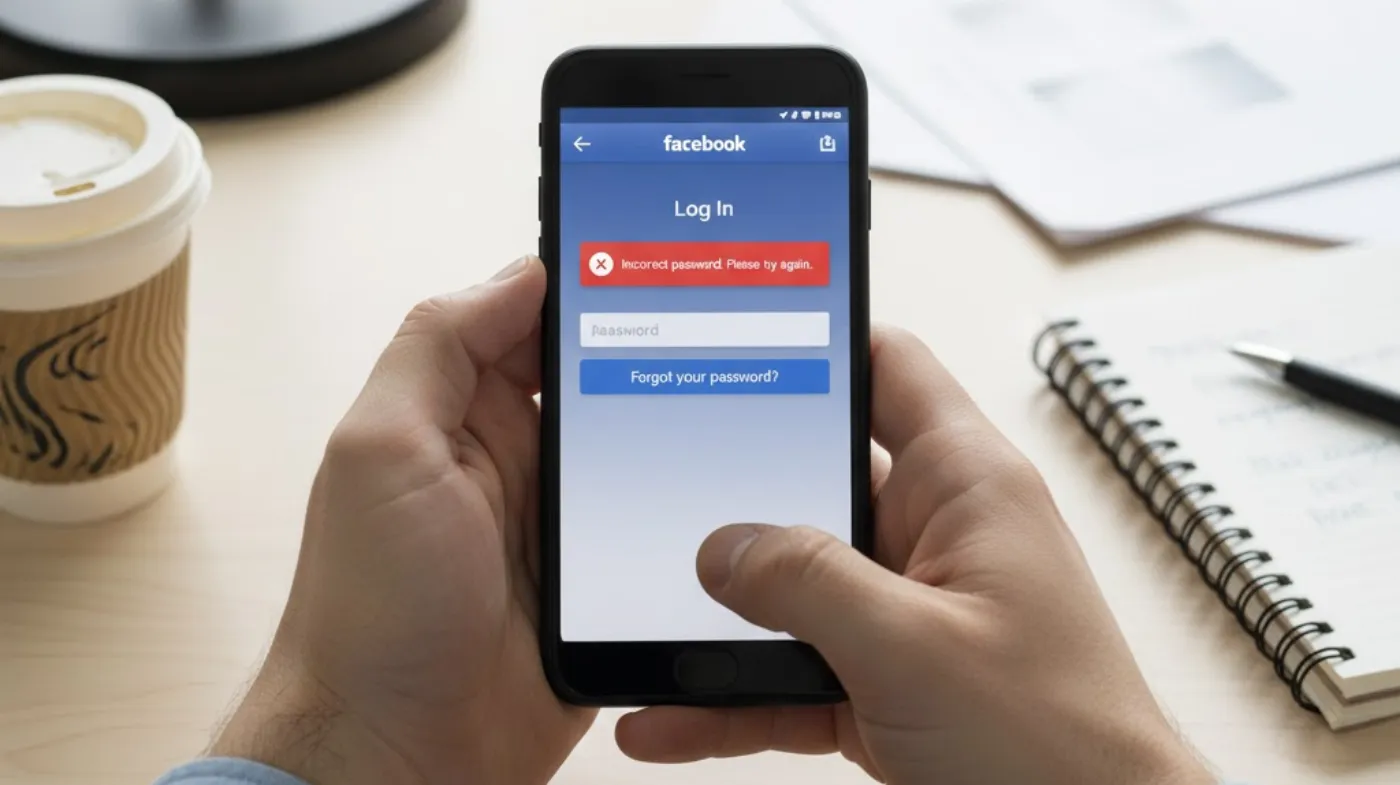
Forgetting your password doesn’t lock you out permanently. Facebook provides recovery options that work seamlessly on the iPhone.
When you reach the Change Password screen and can’t remember your current password, tap Forgotten Your Password below the current password field. Facebook offers two primary recovery methods: receiving a verification code via text message to your registered phone number or getting a code sent to your email address. Choose your preferred method and tap Continue.
Check your phone or email for the verification code Facebook sends. Enter this code in the app to verify your identity. Once verified, you can create a new password without needing the old one.
Creating a Strong Password for Better Security
Your new password should be difficult for others to guess while remaining memorable for you. A combination of uppercase letters, lowercase letters, numbers, and special characters creates the strongest protection.
Avoid using personal information like birthdays, names, or common words that hackers can easily guess. Instead, consider using a secure random password generator to create complex passwords that meet all security requirements. These tools generate unique combinations that are virtually impossible to crack through brute force attacks.
Password length matters significantly for security. Aim for at least 12 characters or longer to maximize protection. The longer your password, the more difficult it becomes for unauthorized users to access your account.
Checking If Your Account Has Been Compromised
Knowing whether your Facebook credentials have been exposed in data breaches helps you take preventive action. Regular monitoring protects your account from unauthorized access.
An email breach checker scans databases of known security breaches to determine if your email address appears in any compromised records. If your email shows up in breach data, change your Facebook password immediately to prevent account takeover attempts.
Watch for unusual activity on your account, such as messages you didn’t send, posts you didn’t create, or login notifications from unfamiliar locations. These signs indicate someone may have accessed your account without permission.
Managing Password Storage on iPhone
iPhone offers built-in password management through iCloud Keychain. This feature securely stores and autofills passwords across all your Apple devices.
When you change your Facebook password, your iPhone automatically prompts you to save the new password to your keychain. Accept this prompt to ensure easy access next time you log in. Your passwords sync across all devices signed into your Apple ID.
To view saved passwords, open the Passwords app on iPhone (available in iOS 18 and later) or access Settings, then Passwords. Search for Facebook to see your stored credentials. Face ID or your device passcode protects this information from unauthorized viewing.
Using Browser-Based Password Tools
Chrome browser on iPhone provides helpful password management features. These tools integrate with your Google account for cross-platform accessibility.
When creating a new Facebook password through Safari or another browser on your iPhone, you might want additional password suggestions. Chrome password suggestion on iPhone offers automatically generated strong passwords that Chrome stores securely in your Google account. This feature works when you’re updating passwords through Facebook’s mobile website rather than the app.
Browser password managers sync across devices, making it easy to access your credentials whether you’re using your iPhone, iPad, or computer. This cross-platform functionality ensures you’re never locked out of important accounts.
Additional Security Measures for Your Facebook Account
Changing your password represents just one layer of account protection. Implementing multiple security features creates a comprehensive defense against unauthorized access.
Enable two-factor authentication (2FA) for an extra security layer. With 2FA activated, anyone trying to log into your account needs both your password and a verification code sent to your phone. This prevents access even if someone discovers your password.
Review your active sessions regularly to see where your account is logged in. Navigate to Settings, then Security and Login, and check Where You’re Logged In. Log out of any unfamiliar devices or sessions you don’t recognize.
Frequently Asked Questions
How often should I change my Facebook password on my iPhone?
Change your Facebook password every three to six months as a general security practice. Update it immediately if you suspect unauthorized access, receive a breach notification, or use the same password across multiple accounts. Regular updates reduce the risk of account compromise.
Can I change my Facebook password without the app?
Yes, you can change your Facebook password through any web browser on your iPhone. Visit facebook.com, log in, access Settings & Privacy, navigate to Password and Security, and follow the same steps as in the app. Both methods achieve the same result.
Will changing my password log me out of other devices?
Changing your password doesn’t automatically log you out of other devices where you’re currently signed in. However, Facebook may ask you to re-authenticate on those devices. For maximum security, manually log out of all sessions after changing your password through Security and Login settings.
What makes a Facebook password secure?
A secure Facebook password contains at least 12 characters combining uppercase letters, lowercase letters, numbers, and special symbols. Avoid dictionary words, personal information, or patterns. Each account should have a unique password that isn’t reused across different platforms or services.
Protect Your Account Today
Keeping your Facebook account secure starts with maintaining a strong, unique password and updating it regularly. The simple steps outlined above allow iPhone users to change their Facebook password in minutes without technical expertise.
Remember to enable two-factor authentication, monitor for suspicious activity, and use password management tools for enhanced protection. Taking these proactive measures ensures your personal information and social connections remain safe from unauthorized access.