
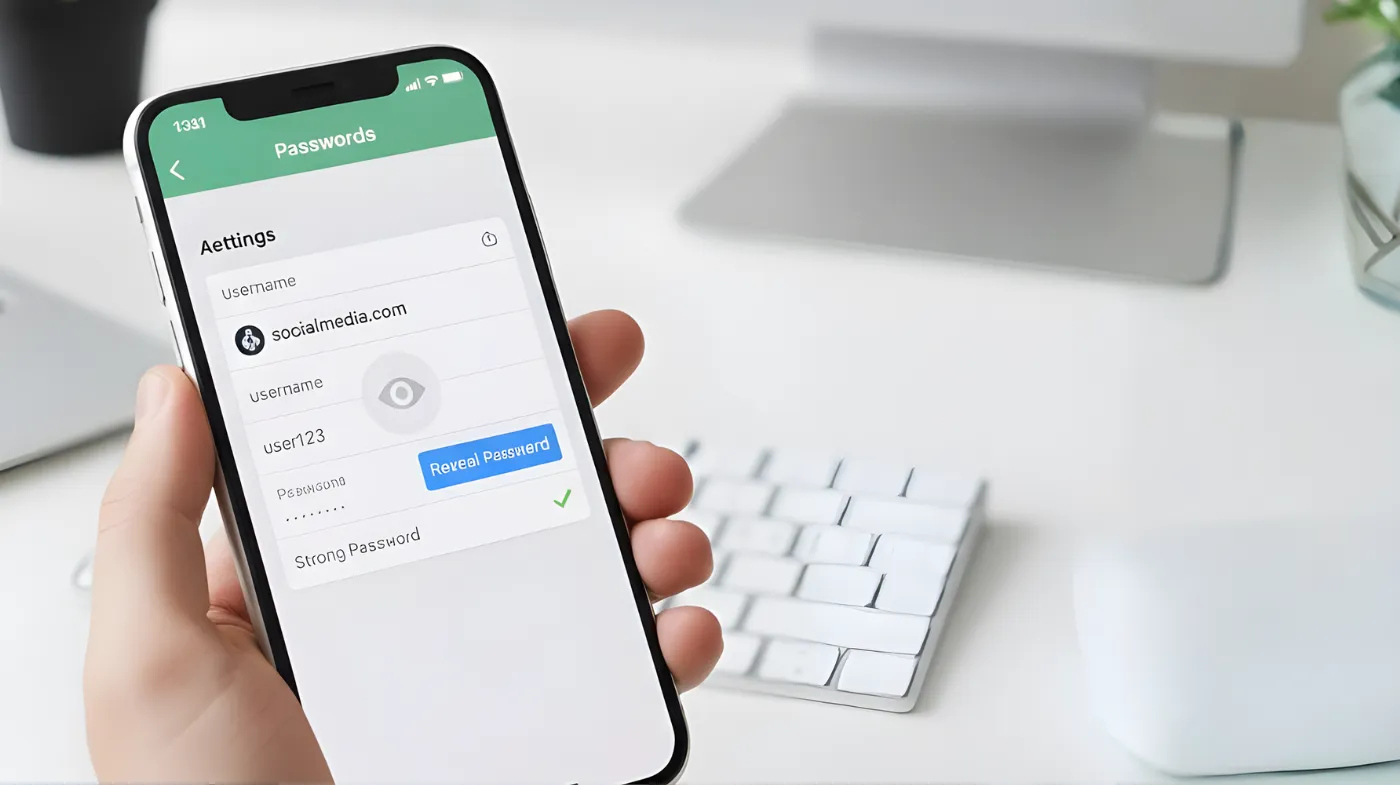
Managing digital credentials effectively is crucial for online safety. iPhones offer built-in tools to access stored passwords through the Passwords app and Settings menu.
Users can view saved login details, identify weak or compromised credentials, and update them with stronger alternatives. The device also provides security recommendations and automatic monitoring features.
This guide explains how to locate your passwords, understand security warnings, and strengthen account protection through iOS features, helping maintain better control over digital security across all apps and websites.
Steps to Check Passwords on iPhone
Accessing saved credentials on an iPhone requires just a few taps through built-in iOS features that protect account information while keeping it readily available.
Access the Passwords App
The Passwords app serves as the central hub for viewing saved credentials on iOS 18 and later versions. Open the app from the home screen, then authenticate using Face ID, Touch ID, or device passcode to gain access.
All stored accounts appear in a categorized list. The app organizes passwords, passkeys, Wi-Fi credentials, and verification codes separately for easier navigation.
Navigate to Settings Menu
For devices running older iOS versions, the Settings app provides an alternative access method. Scroll down the Settings menu until the Passwords option appears, then tap it.
Authentication is required before viewing any stored information. Enter the device passcode or use biometric verification to proceed to the password list.
View Individual Password Details
Tap any website or app entry to see the complete account information. The username appears at the top, followed by the password field underneath.
Tap the password field to reveal the actual characters. This allows copying credentials for use in other applications or verifying accuracy before making changes.
Search for Specific Accounts
The search bar at the top of the Passwords app enables quick location of particular accounts. Type the website name, app name, or username to filter results instantly.
This feature proves especially useful for users with hundreds of saved credentials. The search function scans through all categories simultaneously.
Understanding Security Recommendations
iPhone security tools continuously analyze stored credentials to identify potential vulnerabilities and provide actionable recommendations for improving account protection.
Check Password Security Status
The Security section within the Passwords app identifies vulnerabilities in saved credentials. Tap the Security tab to view all accounts flagged with potential issues.
High-priority recommendations appear in red, indicating compromised passwords detected in known data leaks. Yellow warnings signal reused or easily guessed credentials that need attention.
Review Weak Passwords
Weak passwords lack sufficient complexity to resist common attacks. The iPhone automatically flags credentials that are too short, use common patterns, or contain dictionary words.
A password quality checker evaluates each stored credential against established security standards. This built-in assessment helps identify which accounts need immediate attention.
Identify Reused Credentials
Using identical passwords across multiple accounts creates significant security risks. When one account becomes compromised, all others using that password become vulnerable.
The Security section displays every instance of password reuse. Review these entries and prioritize updating accounts containing sensitive financial or personal information.
Monitor Data Breach Alerts
Apple continuously monitors stored passwords against known data leak databases. When a password appears in a breach, the device sends an immediate alert notification.
Enable this feature by navigating to Settings, tapping Apps, selecting Passwords, and turning on Detecting Compromised Passwords. This provides ongoing protection without manual checking.
Updating Compromised Passwords
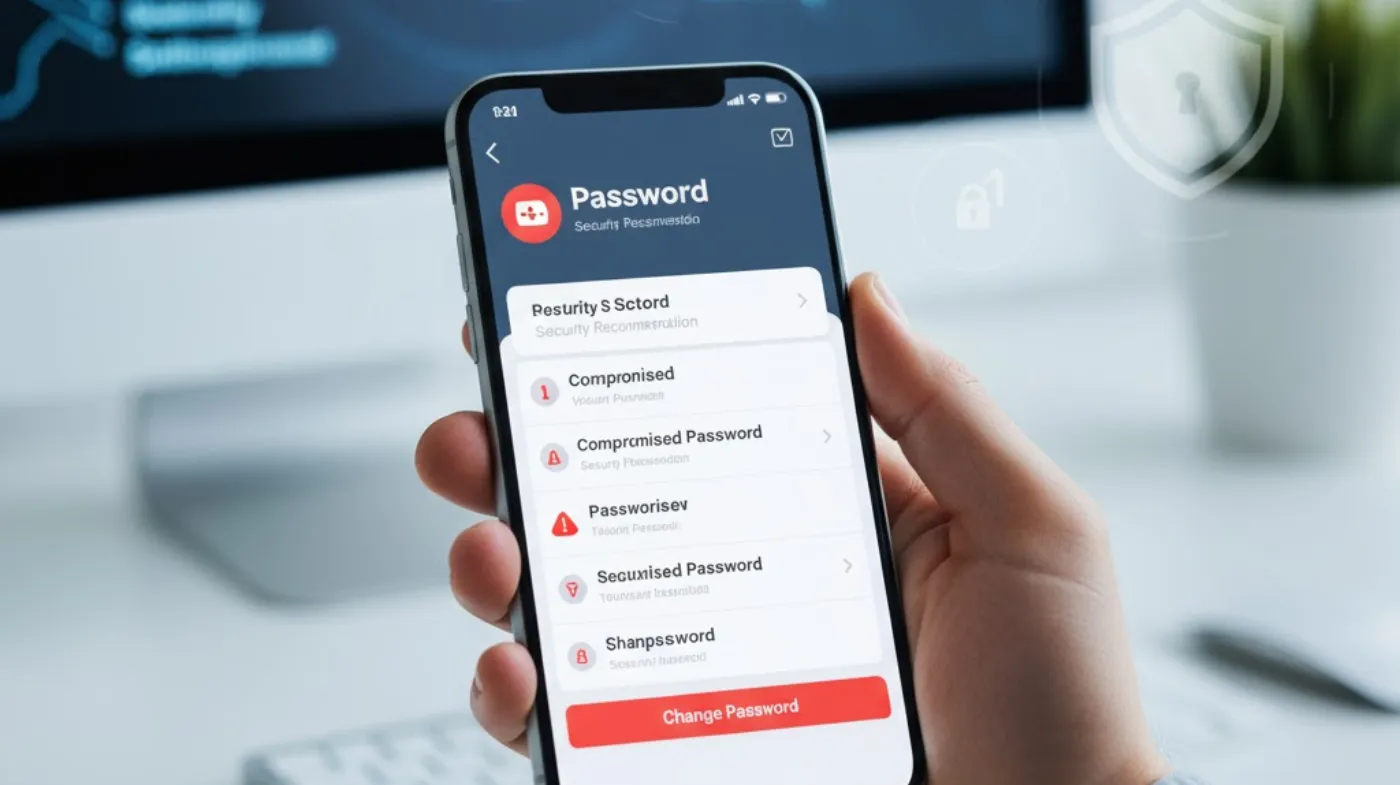
Taking immediate action on flagged credentials prevents unauthorized access and protects sensitive information from exploitation by malicious actors.
Change Flagged Credentials
When the Security tab shows compromised accounts, tap the flagged entry to view details about the issue. The device explains whether the password appeared in a data leak or fails strength requirements.
Tap Change Password on the Website to open the login page directly. Sign in with your current credentials, navigate to security settings, and create a new password.
Generate Strong Passwords
iOS offers automatic password generation when creating new credentials or updating existing ones. The system suggests complex combinations of letters, numbers, and special characters.
For maximum protection, use a very strong password generator that creates lengthy, random strings. These generated passwords are automatically saved to the Passwords app for future use.
Create Unique Passwords
Each online account requires a distinct password to maintain proper security isolation. Never reuse passwords, even with slight variations like added numbers or symbols.
A unique password generator for cybersecurity ensures every account has completely different credentials. This prevents cascade failures when individual accounts become compromised.
Save New Credentials
After updating a password on a website or app, iOS prompts to save the new information. Tap Save Password to update the stored entry in the Passwords app.
The updated credential syncs across all devices using the same Apple ID through iCloud Keychain. This ensures consistent access without manual updates on each device.
Managing iCloud Keychain
iCloud Keychain creates a seamless ecosystem for password management across Apple devices while maintaining bank-level encryption for stored credentials.
Enable iCloud Syncing
iCloud Keychain synchronizes passwords across all Apple devices connected to the same account. Navigate to Settings, tap the Apple ID profile, then select iCloud and toggle on Passwords.
This feature uses 256-bit AES encryption to protect data during transmission and storage. Even Apple cannot access the encrypted password information.
Share Passwords Securely
iOS allows secure password sharing with trusted contacts through AirDrop. Open the Passwords app, select the account to share, then tap the share icon.
Choose a contact from the AirDrop menu. The recipient must also use an Apple device with iCloud Keychain enabled to receive shared credentials securely.
Export Password Data
While iOS doesn’t include native export functionality, users can manually copy credentials to transfer them elsewhere. Open each account entry and copy the username and password fields individually.
For comprehensive backup purposes, third-party password managers offer import capabilities. These applications can retrieve iCloud Keychain data through authorized access.
Additional Password Security Features
Beyond basic password storage, iOS includes advanced security layers that enhance protection and simplify authentication across multiple platforms.
Enable AutoFill Functionality
AutoFill automatically populates username and password fields when logging into websites or apps. Navigate to Settings, tap General, select AutoFill & Passwords, then enable AutoFill Passwords and Passkeys.
Choose which password sources to use for autofill. Up to three different password managers can work simultaneously on iOS devices.
Use Passkeys When Available
Passkeys provide passwordless authentication using biometric verification. Many modern websites and apps now support this more secure alternative to traditional passwords.
When creating new accounts or updating existing ones, iOS prompts to set up a passkey if the service supports it. These credentials resist phishing attacks and eliminate password weaknesses.
Set Strong Device Passcode
The device passcode protects access to all stored passwords. Go to Settings, tap Face ID & Passcode, then select Change Passcode to update it.
Choose Custom Alphanumeric Code for maximum security. Longer passcodes with mixed characters provide significantly better protection than simple numeric codes.
Frequently Asked Questions
Can I access iPhone passwords without the device passcode?
No, viewing stored passwords requires device authentication through Face ID, Touch ID, or passcode entry. This security measure prevents unauthorized access even if someone physically holds the device.
What should I do if my password appears in a data leak?
Immediately change the compromised password on the affected website or app. Use a strong, unique replacement that hasn’t been used elsewhere.
Enable two-factor authentication on that account for additional protection.
Does iCloud Keychain work with non-Apple devices?
iCloud Keychain primarily functions on Apple devices, but Windows users can access stored passwords through the iCloud Passwords browser extension. The feature integrates with Chrome, Edge, and other Chromium-based browsers on Windows computers.
How many passwords can an iPhone store?
iPhones have no practical limit on stored passwords. The Passwords app can manage thousands of credentials without performance issues.
The system organizes them efficiently for quick retrieval through search and categorization features.
Strengthen Your iPhone Security
Regularly reviewing stored passwords helps maintain strong account protection across all online services. The built-in iPhone tools provide comprehensive password management without requiring third-party applications.
Check the Security recommendations weekly to identify new vulnerabilities and address them promptly. Enable all available security features, including biometric authentication, automatic password monitoring, and iCloud Keychain syncing.
These combined protections create multiple defensive layers against unauthorized access and credential theft.