
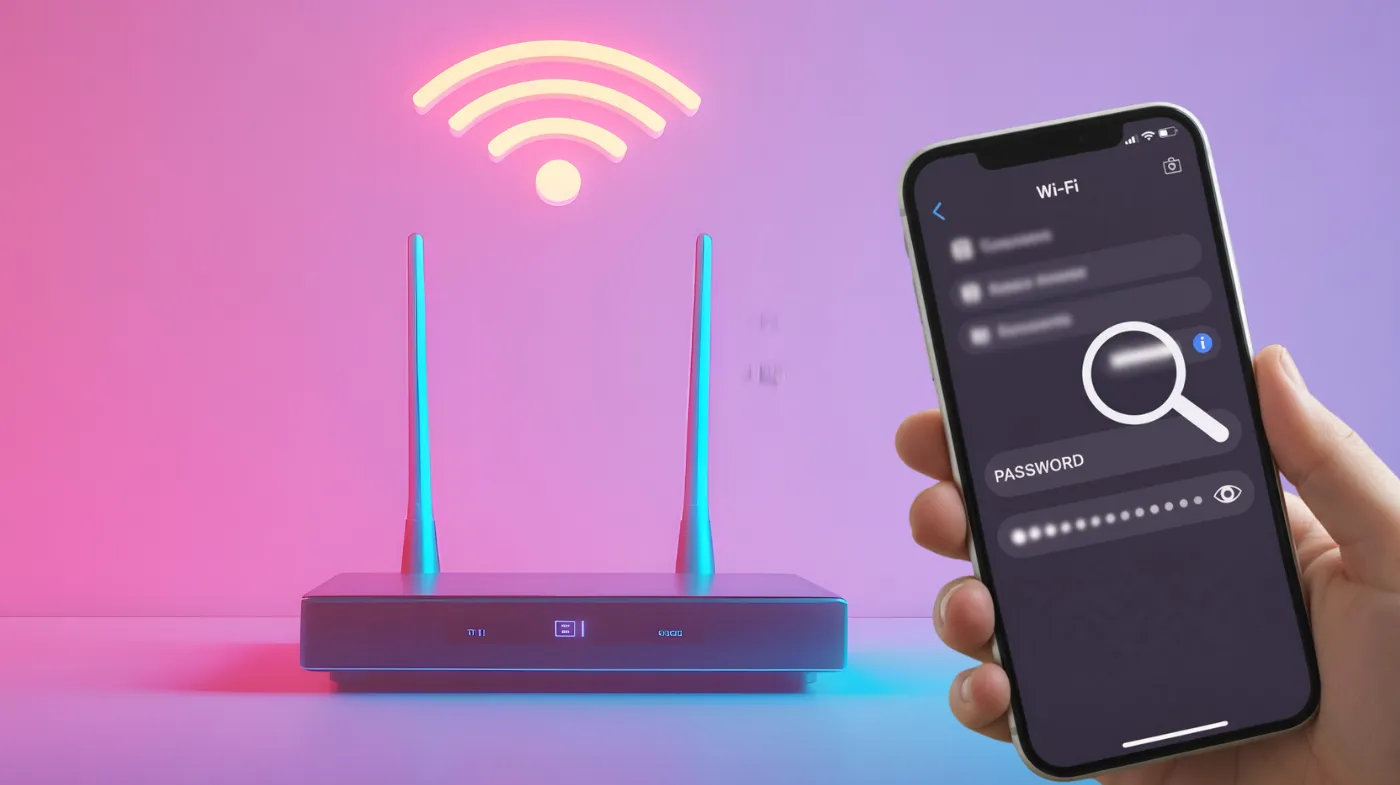
Forgetting your WiFi password can leave you scrambling to reconnect devices or share access with guests. Your iPhone actually stores every network password you’ve ever used, but many users don’t know how to access this hidden treasure trove of credentials.
You’ll discover how to retrieve passwords through Settings, iCloud Keychain, and proximity sharing features. Learn to access current network credentials in seconds, share passwords wirelessly between Apple devices, and manage your entire collection of saved networks securely.
Whether you need to connect a new device, help a guest join your network, or simply want to master your iPhone’s security features, this guide provides everything you need. No more writing down passwords or asking others for network details.
Checking Saved WiFi Passwords in Settings
Your iPhone stores every WiFi network password you’ve connected to in the past. The Settings app provides direct access to these saved credentials without requiring additional apps or complicated steps.
Opening WiFi Settings Menu
Navigate to your Settings app and tap on WiFi. You’ll see a list of available networks, including ones you’ve connected to before. The networks with a checkmark indicate your current connection.
Make sure your WiFi is turned on. If it’s disabled, toggle the switch to see all saved networks. Your previously connected networks will appear at the top of the list.
Accessing Network Information
Tap the information icon (i) next to any saved network name. This opens a detailed view showing network configuration and security settings. Look for the password field on this screen. The information page displays the network name, security type, and IP configuration.
Revealing Hidden Passwords
On the network information screen, tap the password field to reveal the hidden characters. Your iPhone will prompt you for authentication using Face ID, Touch ID, or your device passcode. After successful authentication, the complete WiFi password appears on the screen.
Copying Password for Quick Sharing
Once the password is visible, tap and hold on the password text. A menu appears with options to copy the credentials. Select Copy to save it to your clipboard. This copied password can be pasted into any app or message. Share it quickly with friends or use it to configure other devices without retyping.
Using the Password AutoFill Feature
iOS includes a password AutoFill feature that automatically suggests saved WiFi passwords when needed. This works seamlessly across apps and connection requests. Enable AutoFill in Settings under Passwords. Your iPhone will automatically fill WiFi credentials when connecting to new devices or responding to password requests.
Verifying Password Accuracy
After revealing the password, double-check the characters carefully. WiFi passwords are case-sensitive and may include special symbols or numbers that look similar.
Test the password on another device to ensure it works correctly. If the connection fails, verify you’ve copied all characters, including spaces or special symbols.
Viewing WiFi Passwords via Keychain Access
Apple’s Keychain stores all your passwords, including WiFi credentials, across your Apple devices. This cloud-based system syncs passwords automatically when you’re signed into iCloud.
Enabling iCloud Keychain Sync
Open Settings and tap your Apple ID at the top. Navigate to iCloud, then scroll to Keychain and toggle it on. This enables password syncing across devices. Once enabled, all saved WiFi passwords sync automatically. You can access these credentials from your iPhone, iPad, or Mac whenever needed.
Accessing Passwords Section
In Settings, navigate to the Passwords section. Your iPhone will request authentication using Face ID, Touch ID, or a passcode before displaying stored credentials. This section shows all saved passwords, including WiFi networks, apps, and websites. Use the search bar to quickly find specific network credentials.
Searching for WiFi Networks
Type the network name in the search field at the top. Your iPhone filters results instantly, showing matching WiFi networks. Tap on the network to view full details. The search function works with partial names, too. Even if you don’t remember the exact network name, searching keywords helps locate it.
Viewing Complete Credentials
Select any WiFi network from the list to see its complete information. The password appears along with the network name, security type, and connection history. Tap the password field to copy or share it. Your iPhone maintains a detailed record of when you first connected and last modified these credentials.
Managing Multiple Network Passwords
If you’ve connected to many WiFi networks, organizing them helps. Use the secure random password generator approach when setting up new networks to ensure strong security. Review saved networks regularly and remove outdated ones. This keeps your password list clean and reduces security risks from old, unused connections.
Syncing Across Apple Devices
Keychain automatically syncs WiFi passwords to all your Apple devices. When you save a password on your iPhone, it becomes available on your Mac and iPad instantly. This seamless integration means you never need to manually transfer WiFi credentials.
Finding WiFi Passwords on Connected Networks
When you’re currently connected to a WiFi network, retrieving the password becomes even simpler. Your iPhone provides instant access to active connection credentials.
Viewing Current Network Details
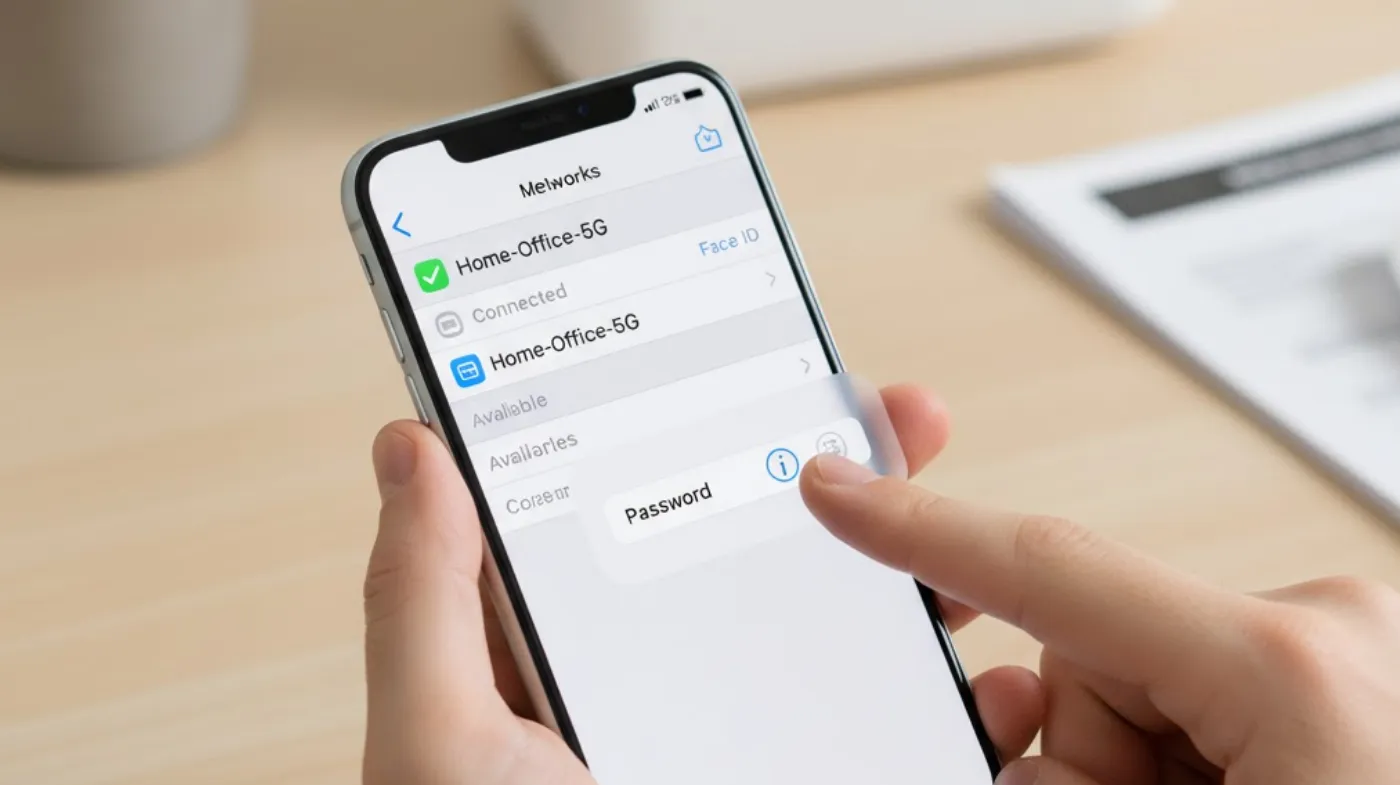
Open Settings and tap WiFi. Your current network appears at the top with a checkmark. This indicates active connection status and priority placement. Tap the information icon next to the connected network. The detail page loads instantly, showing comprehensive network configuration and password information.
Quick Password Retrieval Method
On the network details page, locate the password field and tap it. Authenticate using your biometric security or device passcode when prompted. The password appears immediately after authentication.
This quick method works faster than searching through Keychain when you’re already connected to the network. If you discover saved networks with weak passwords, update them at the router level. Use secure methods to generate strong wifi password alternatives.
Using Siri for Password Access
Ask Siri to “show WiFi password” while connected to a network. Siri displays the credentials after biometric authentication, providing hands-free password access. This voice command works especially well when your hands are occupied. Siri retrieves the password from your iPhone’s secure storage instantly.
Sharing via QR Code Method
Some third-party apps generate QR codes for WiFi credentials. While iPhone don’t create these natively, connected devices can scan shared QR codes to join networks. This method proves useful when sharing with Android users or devices without Apple’s proximity sharing.
Creating Strong WiFi Credentials
When setting up new networks, use a strong wifi PIN generator to create robust passwords. Strong credentials protect your network from unauthorized access attempts. Complex passwords should mix uppercase, lowercase, numbers, and symbols.
Consider using a strong wifi password generator tool for maximum security when configuring new routers. Modern browsers like Chrome suggest wifi passwords on iPhone and integrate with iOS password storage. This creates seamless credential sharing between apps and system features.
Documenting Network Information
Keep a secure backup of important WiFi passwords outside your iPhone. Store credentials in a password manager for additional redundancy and accessibility. This backup proves valuable during device replacements or in emergencies. Managing secure Wi-Fi passwords requires multiple layers of protection beyond device storage.
Frequently Asked Questions
Can I View WiFi Passwords for Networks I’m Not Connected To?
Yes, you can view passwords for any network you’ve previously connected to, regardless of current connection status. Open Settings, go to WiFi, and tap the information icon next to any saved network.
Authenticate with Face ID or passcode to reveal the password. Your iPhone stores all historical WiFi passwords in Keychain. This means networks from months or years ago remain accessible through the Passwords section.
Do I Need Special Apps to See WiFi Passwords?
No special apps are required to view WiFi passwords on iPhone. iOS includes built-in features in Settings that provide complete access to saved credentials. Third-party apps aren’t necessary and may pose security risks.
Apple’s native tools offer the safest method for accessing passwords. Avoid downloading apps claiming to reveal WiFi passwords, as they often don’t work or compromise security.
Final Thoughts on WiFi Password Management
Viewing WiFi passwords on your iPhone is straightforward using built-in iOS features. The Settings app and Keychain provide secure, convenient access to all saved network credentials. Apple’s proximity sharing makes password distribution between devices effortless.
Remember to maintain strong passwords and update them regularly. Use iOS security features like Face ID authentication to protect stored credentials. Regular password audits keep your networks secure from unauthorized access.
Whether you’re sharing with guests or connecting new devices, your iPhone makes WiFi password management simple and secure. Take advantage of these built-in tools to maintain both convenience and security across all your wireless networks.